Job Search
Create and schedule automated job searches across Indeed and LinkedIn.
Creating a Search
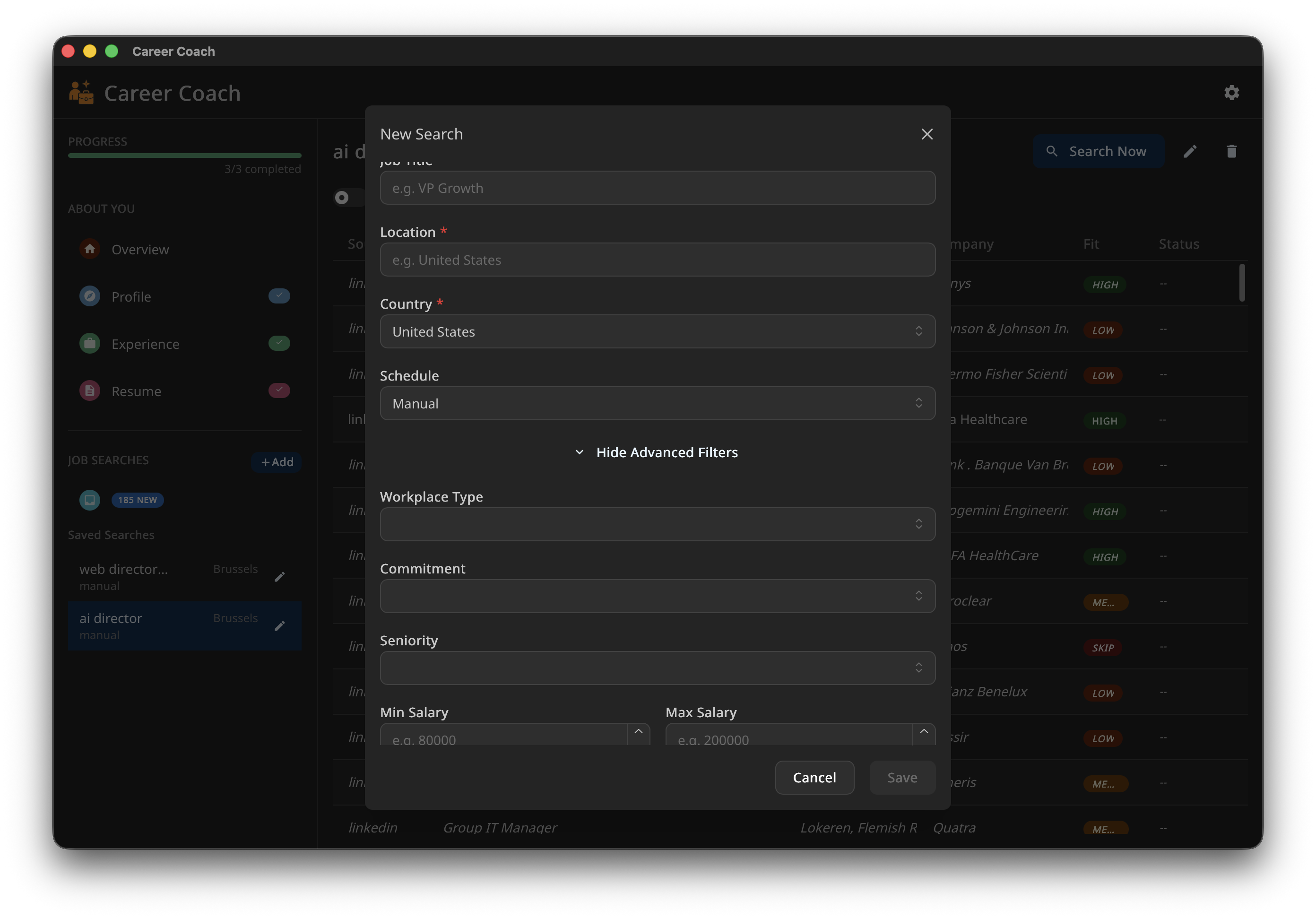
- Click + New Search in the sidebar.
- Enter a title (e.g., "Staff Engineer Paris") and location (e.g., "Paris, Île-de-France").
- Choose a schedule:
- Manual — runs only when you click "Run"
- Daily — runs every 24 hours
- Weekly — runs every 7 days
- Monthly — runs every 30 days
- Optionally add advanced filters — job type, remote preference, experience level, date posted, etc.
- Click Save.
Running Searches
- Single search: Click the play button next to a search in the sidebar.
- All searches: Click Search All to run every search sequentially (with a 2-second delay between each to respect rate limits).
- Scheduled: The scheduler checks every 60 seconds for due searches and runs them automatically.
Managing Searches
- Edit: Click the search name to open its settings.
- Delete: Use the delete button in the search edit modal. This removes the search and all associated jobs, scores, and documents.
- Duplicate prevention: Two searches cannot have the same title and location combination.
Search Results
Results are deduplicated across searches. If the same job appears in multiple searches, you'll see it once. New results are tagged with a blue dot indicator. Click into the job detail to clear the new marker.
Configuration
You need an Anthropic API key to use AI features. Configure your API key →
The job data source is Indeed and LinkedIn (via ts-jobspy). No external job board API keys are required.